Obsidian tidbits
Contents
- What I appreciate about Obsidian
- KISS, or less is more 😽
- What’s in a note? Isnt’t it just a bunch of text?
- Add word variants as aliases in the frontmatter
- My note types: time-based, not time-based
- Just a handful of folders
- Use two-sided notes, combining markdown and Excalidraw
- Hiding parts of frontmatter
- You can navigate your notes in many ways
- Vault gardening – ways of learning and (re)discovering
- Consider using Obsidian’s reading view when copy–pasting to other apps
- Single-page presentations using Excalidraw
- My fave community plugins for Obsidian
- Learn more from my favourite teachers
This page describes how I currently use Obsidian. Hope you find something useful 🐱 The page is published using the excellent Enveloppe plugin for Obsidian.
For searchability, that is, the mighty
ctrl-F, I will keep this one page for now. Still, my ambition is to keep each topic/FAQ atomic, trying to fit each subsection on a typical screen.
What I appreciate about Obsidian
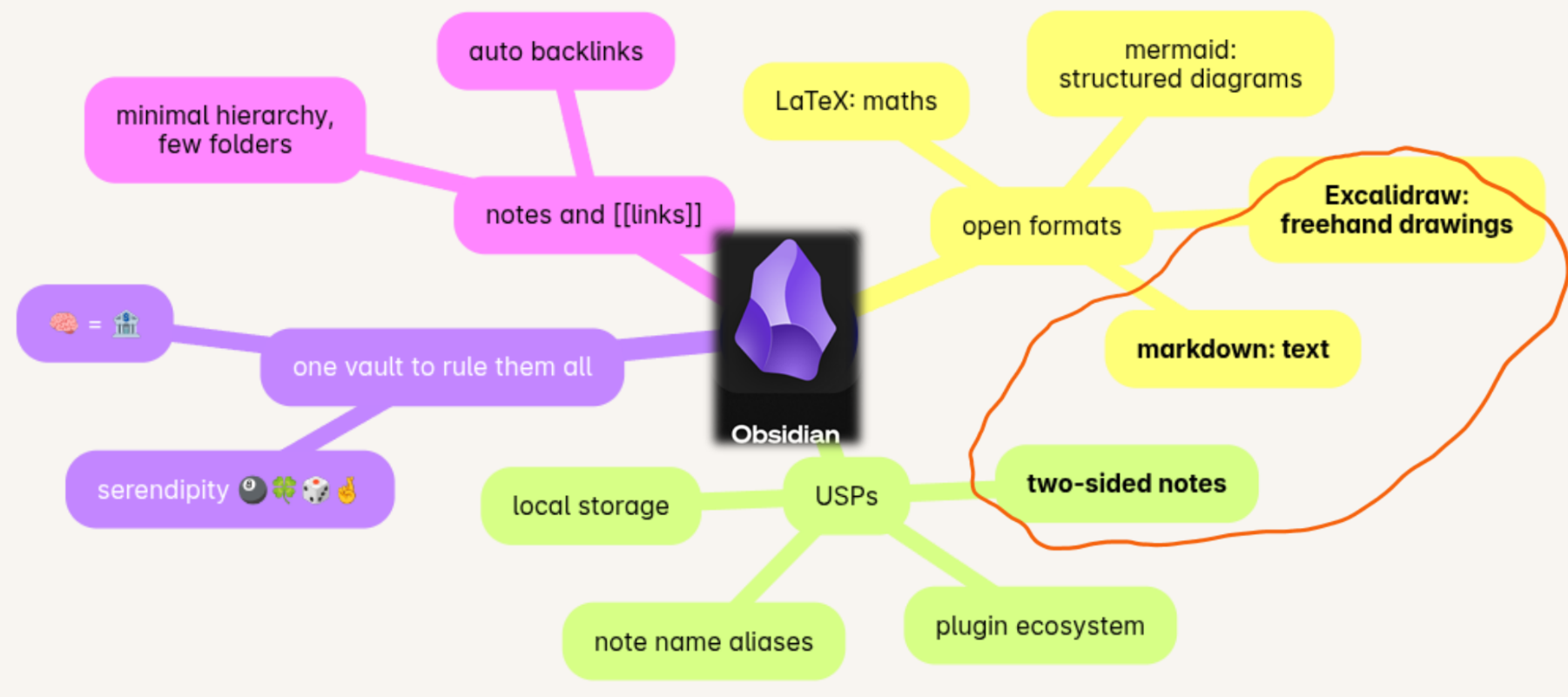
- Notes with multiple names (aliases), two sides and flexible linking are the key features for me
- A single vault keeps all notes. You cannot link between vaults, making multiple vaults much less useful
KISS, or less is more 😽
These are some guiding principles I’ve found useful when deciding how to use Obsidian.
| Less … | is more |
|---|---|
| folders | 🔗 links |
| vaults, docs, notebooks | 🔗 links, again 😆 |
| organizing ahead of time | 🎨 emergent themes via links 😊 |
| word count per ‘note’ note | 🤔 shorter notes – easier linking trains of thought |
| cloud | ⏳ future proofing |
What’s in a note? Isnt’t it just a bunch of text?
- Name – you can always rename a note and links will update automatically
- Frontmatter = metadata, including aliases for more names/variants. See Add word variants as aliases in the frontmatter below
- Textual side – markdown, rendered live
- Image side – Excalidraw, rendered as SVG
- Inline links to other notes
- Pasted images, screenshots
Backlinks and the local graph are automatically generated for you. They are a great way of discovering connections. Having links and backlinks available was a key feature in Ted Nelson’s thinking about hypertext and project Xanadu.
Add word variants as aliases in the frontmatter
You can use the note’s aliases property to add singular or plural forms of note titles. For example,
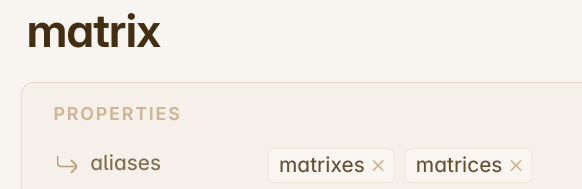
It can also make sense to use aliases for acronyms such as ‘CSS’ and ‘css’. Lower case tends to make notes more legible, especially if you are inundated with acronyms. Your mileage may vary 😊
My note types: time-based, not time-based
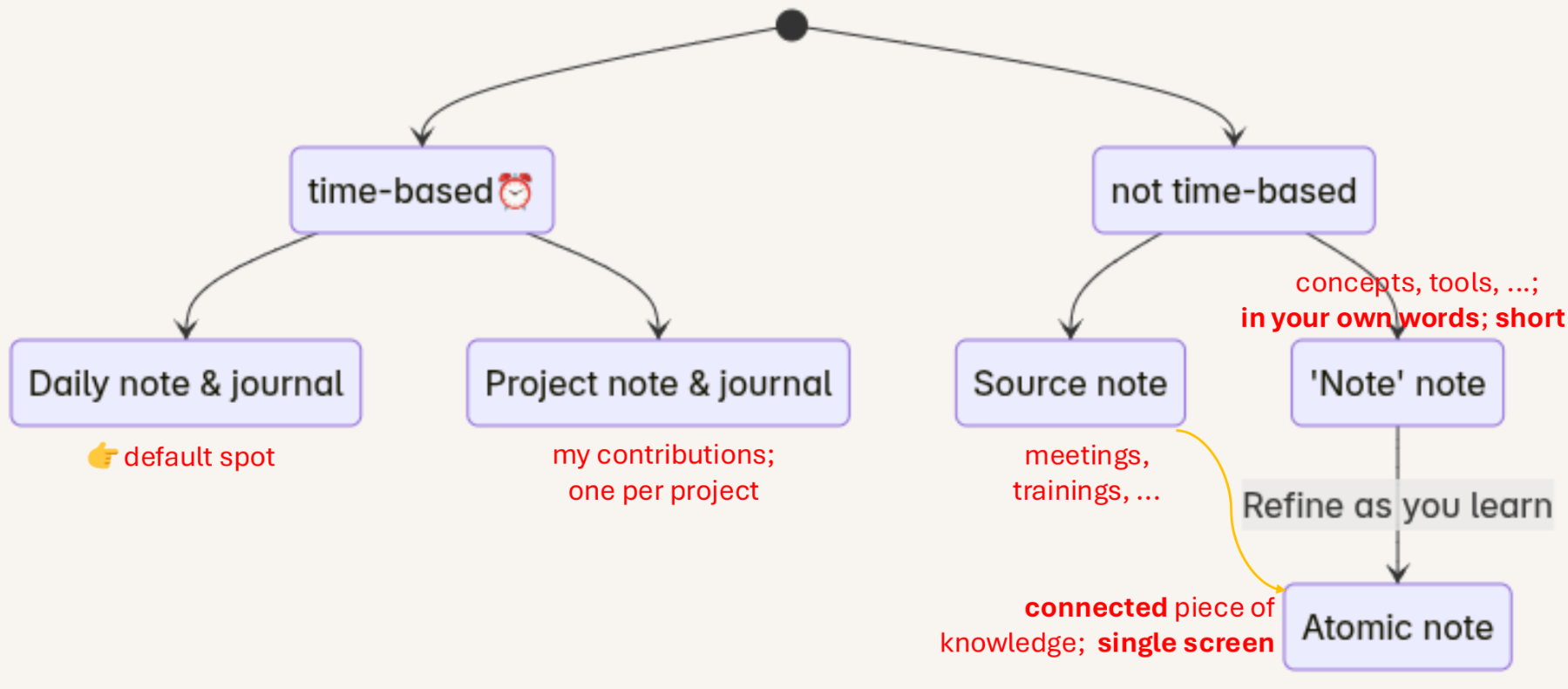
A quick intro to the note types I use:
- Daily notes: I use the ‘Daily Notes’ core plugin. All daily notes are in their own folder and there is a dedicated daily note template. The daily note has a logbook/diary section and a placeholder for today’s to do-list. The daily note is the default spot for off-the-cuff note taking. These loose ends can later be moved to a project, source or ‘note’ note.
- Project note & journal: each project has its own ‘note’ note containing relevant links and a logbook to track my own contributions to the project
- Source notes are the notes and mind-maps from attending lectures & trainings, watching videos, reading books and so on
- ‘Note’ notes are written in my own words and can refer back to the other types of notes above
- Atomic notes are refined ‘note’ notes that focus on a single concept or idea. Besides being shorter (‘atomic’), they should be interlinked with other relevant notes. Atomic notes emerge over time and not all ‘note’ notes end up in this state
Just a handful of folders
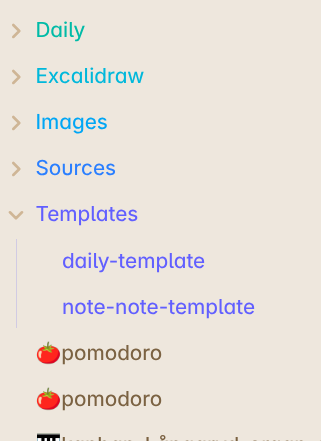
In line with the principle of emergent organization, I keep the number of folders to a minimum.
- Daily notes are highly structured and deserve their own folders as to not swamp the vault
- Images are linked from notes and get their own folder
- Source notes get their own folder as a way of making ‘note’ notes stand out
- Templates are a key resource used by different plugins and need a dedicated folder
The remainder of the vault are ‘note’ notes, starting out with ‘🍅pomodoro’ in the screenshot.
Use two-sided notes, combining markdown and Excalidraw
Setting up notes to combine markdown with Excalidraw makes sure each note always has its own scratch pad for diagrams and visual 🧠-storming. I find this especially useful for source notes. If this sounds interesting, have a look at Nicole van der Hoeven’s lovely video: Visual note templates with Obsidian Excalidraw - YouTube
This setup lets you create note like this:
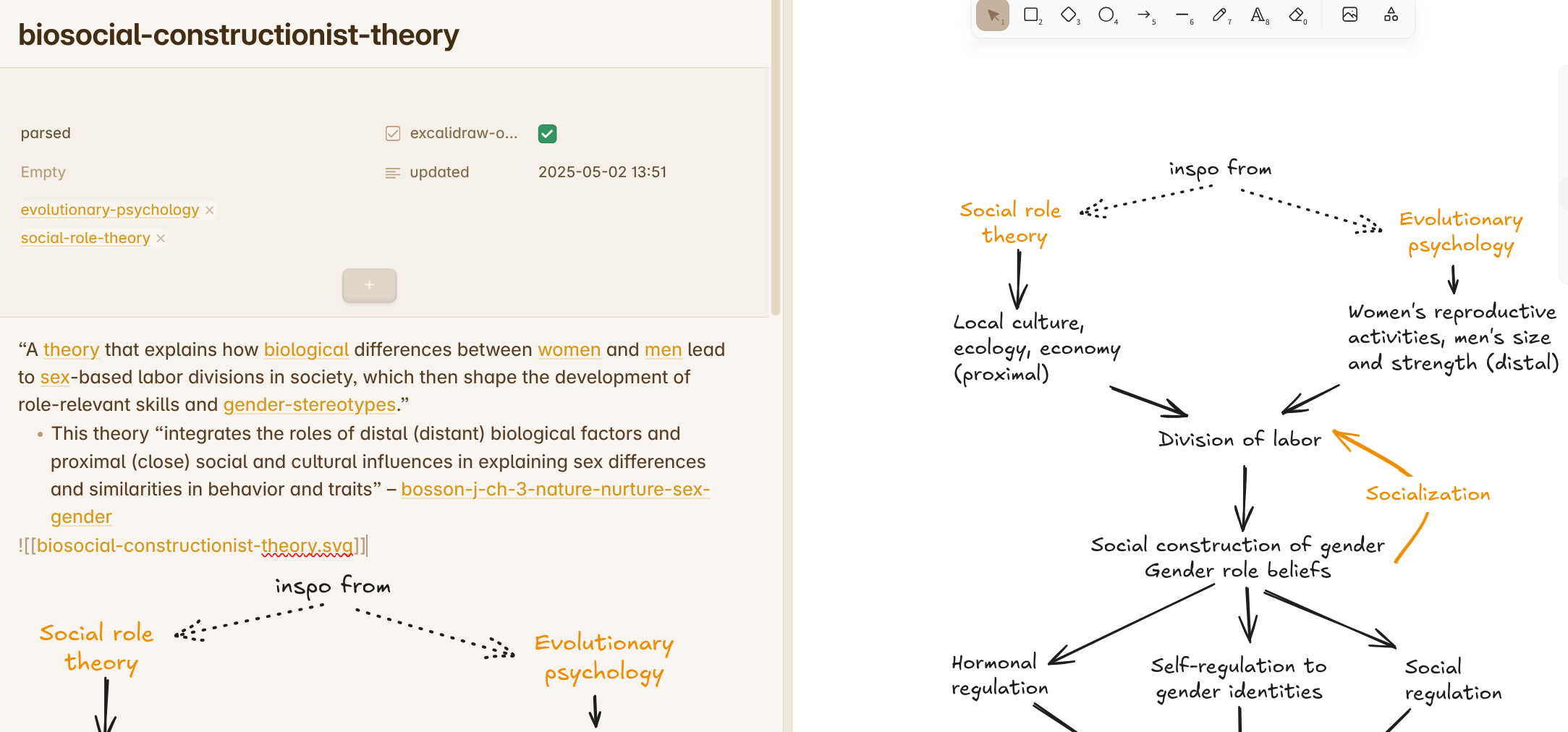
Left pane: markdown side – right pane: Excalidraw side, also embedded left via ![[...
Here is a summary of my setup and experiences of using two-sided notes. Install and then configure Excalidraw in Obsidian as follows:
- Basic > Excalidraw template file or folder: “templates”
- Saving > Filename > .excalidraw.md or .md: set to off – makes the default ‘.md’ files
- Saving > Compress Excalidraw JSON in Markdown – enable this to reduce clutter in search results.
- Embedding Excalidraw > Auto-export Settings > Auto-export SVG: set to on
- Miscellaneous features > Fade out Excalidraw markup. This helps avoid visual clutter at the bottom of each note file. Each note is self-contained and easy to share as a single markdown file.
Also,- You can convert an existing (textual) note to incorporate Excalidraw. Use the ‘Excalidraw: Convert markdown note to Excalidraw Drawing’ command
- To switch between the two sides of the note, use the ‘Excalidraw: Toggle between Excalidraw and markdown mode’ command.
- You can see both sides of the note by putting them side by side – use stacked tabs. You might need to save (ctrl-S) manually to have the svg image update.
- If you want all notes to be two-sided by default, create a template including these properties in the frontmatter:
---
excalidraw-plugin: parsed
excalidraw-open-md: true
---
- On the markdown (text) side of the note, you can embed the svg version of the Excalidraw page as usual:
![[notename.svg]] - The only (minor) disadvantage I’ve found is the extra svg files in the vault.
Hiding parts of frontmatter
If you have some frontmatter properties that need not be visible in Live Preview mode, you can hide them. For example, to hide the two Excalidraw template properties mentioned above, you can use this CSS snippet:
/* Always hide the Excalidraw properties supporting double-sided
   notes with Excalidraw on the flip side */
.metadata-property[data-property-key="excalidraw-open-md"],
.metadata-property[data-property-key="excalidraw-plugin"] {
  display: none;
}
- Put the snippet in its own CSS file, for example,
hide-some-properties.css - Store the file inside your vault in the
.obsidian/snippetsfolder - In Obsidian, activate the snippet in Settings > Options > Appearance > CSS Snippets
To see or edit the hidden frontmatter, simply switch to Source Mode in Obsidian – now you can edit it as yaml.
You can navigate your notes in many ways
- Find or create a note option (ctrl-O)
- Good ol’ find (ctrl-F)
- Via outgoing links from a note
- Linked mentions – at the bottom of each note
- Unlinked mentions
- Via the Files explorer
Vault gardening – ways of learning and (re)discovering
- Find orphaned files and broken links plugin – find potentially forgotten notes
- Improved random note plugin – rediscover notes and improve them in a more spontaneous way
- Use the local graph with neighbour links enabled (Filters)
- Good ol’ search is always available
- Try the Global graph view – your mileage may vary
On a related topic, there are good plugins for spaced repetition
Consider using Obsidian’s reading view when copy–pasting to other apps
When copying from Obsidian to paste into other tools, try copying from the reading view.

The HTML formatting you get with the reading view might be more suitable than the raw markdown, depending on your paste destination.
Single-page presentations using Excalidraw
To be elaborated.
For details, see Zsolt Viczian’s A detailed walkthrough of the Excalidraw-Obsidian Slideshow 3.0 script - YouTube
My fave community plugins for Obsidian
- zolrath/obsidian-auto-link-title: Automatically fetch the titles of pasted links
- liamcain/obsidian-calendar-plugin: Simple calendar widget for Obsidian.
- tth05/obsidian-completr: Auto-completion plugin for the obsidian editor.
- oliveryh/obsidian-emoji-toolbar: An Obsidian plugin to quickly add emojis into your notes 🦄
- zsviczian/obsidian-excalidraw-plugin: A plugin to edit and view Excalidraw drawings in Obsidian
- Vinzent03/find-unlinked-files: Find files, which are nowhere linked, so they are maybe lost in your vault.
- lighthousedino/obsidian-front-matter-timestamps – set the update/creation time for a note
- ShockThunder/improved-random-note – rediscover your notes by throwing a dice
- reorx/obsidian-paste-image-rename: Renames pasted images and all the other attachments added to the vault
- mgmeyers/obsidian-smart-typography: Converts quotes to curly quotes, dashes to em dashes, and periods to ellipses
- BambusControl/obsidian-unicode-search: Simple Unicode character search for Obsidian.md ☂️ꭅ
- vschroeter/obsidian-virtual-linker: Plugin for obsidian that automatically generates virtual links for text within your notes that match with the titles or aliases of other notes in your vault.
Learn more from my favourite teachers
- Morganeua: Make Your Notes Last A Practical Guide for Students
- This approach is as good for projects as for university courses
- Same: Take RANDOMIZED zettelkasten notes with me!
- Vault gardening in a fun way, embracing serendipity
- Elizabeth Filips: You’re Not Stupid: How to Easily Learn Difficult Things
- Justin Sung: Private Lecture: How to Remember EVERYTHING You Read - YouTube
- Take Smart Notes — Sönke Ahrens – the book & the course